Windows 11 Open With: Open Any File with a Different App — Once or Always
Published on: 24/05/2026
Right-click a file → Open with → Choose another app. Tick 'Always use this app' to make it permanent, or just open once without changing your default.
Windows 11Open withfile managementdefault appsWindows tips

Windows 11 Right-Click 'Open With': Change Default App for One File or Forever
Published on: 24/05/2026
Right-click any file → Open with → Choose another app. Tick 'Always use this app' to make it permanent, or leave it unticked to open once with a different app.
Windows 11Open with menufile tipsapp switchingWindows tips
Windows 11 Battery Tips: 5 Quick Wins That Make a Real Difference
Published on: 22/05/2026
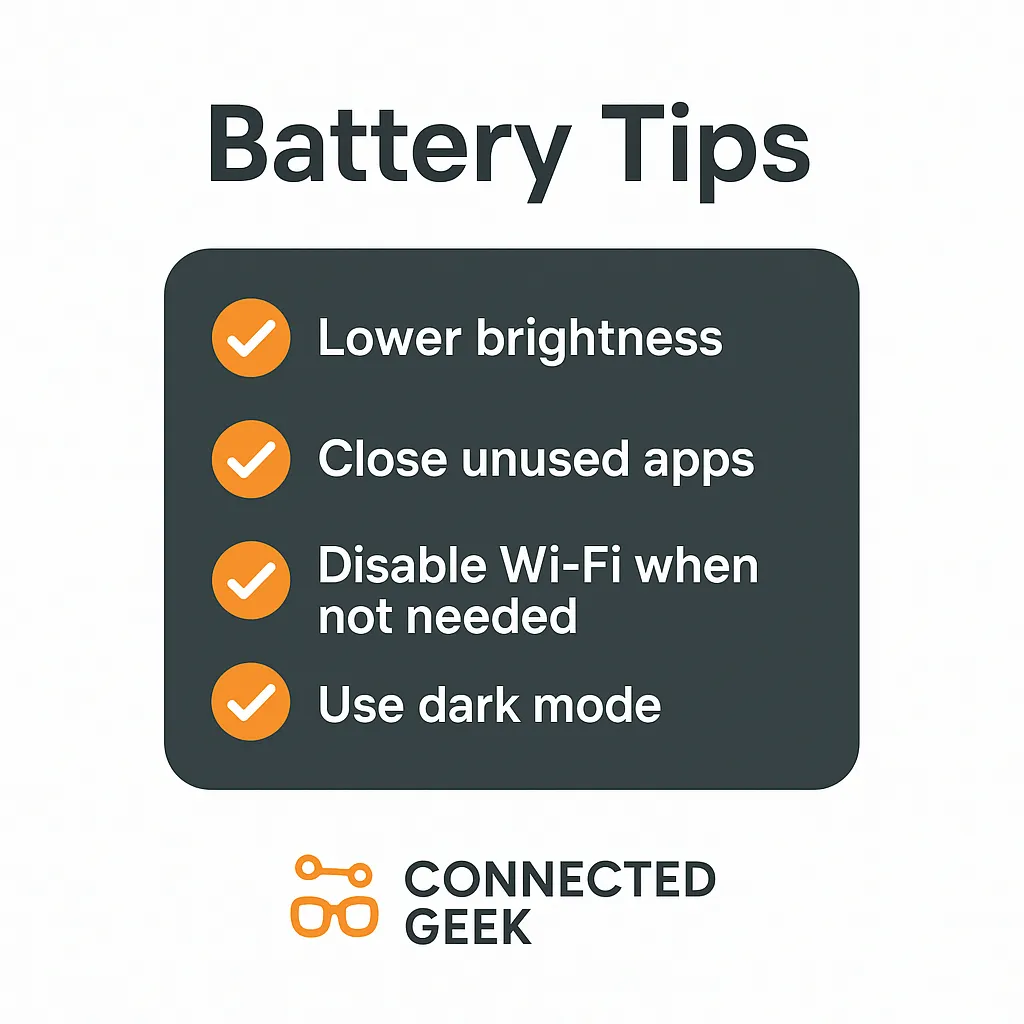
Lower brightness, enable Battery Saver, close unused apps, turn off Bluetooth and Wi-Fi when idle, and switch to dark mode — five small changes for noticeably longer battery life.
Windows 11battery tipsextend battery lifelaptop batteryWindows tips
Windows Hello Face Recognition: How to Improve Accuracy in Low Light and with Glasses
Published on: 20/05/2026
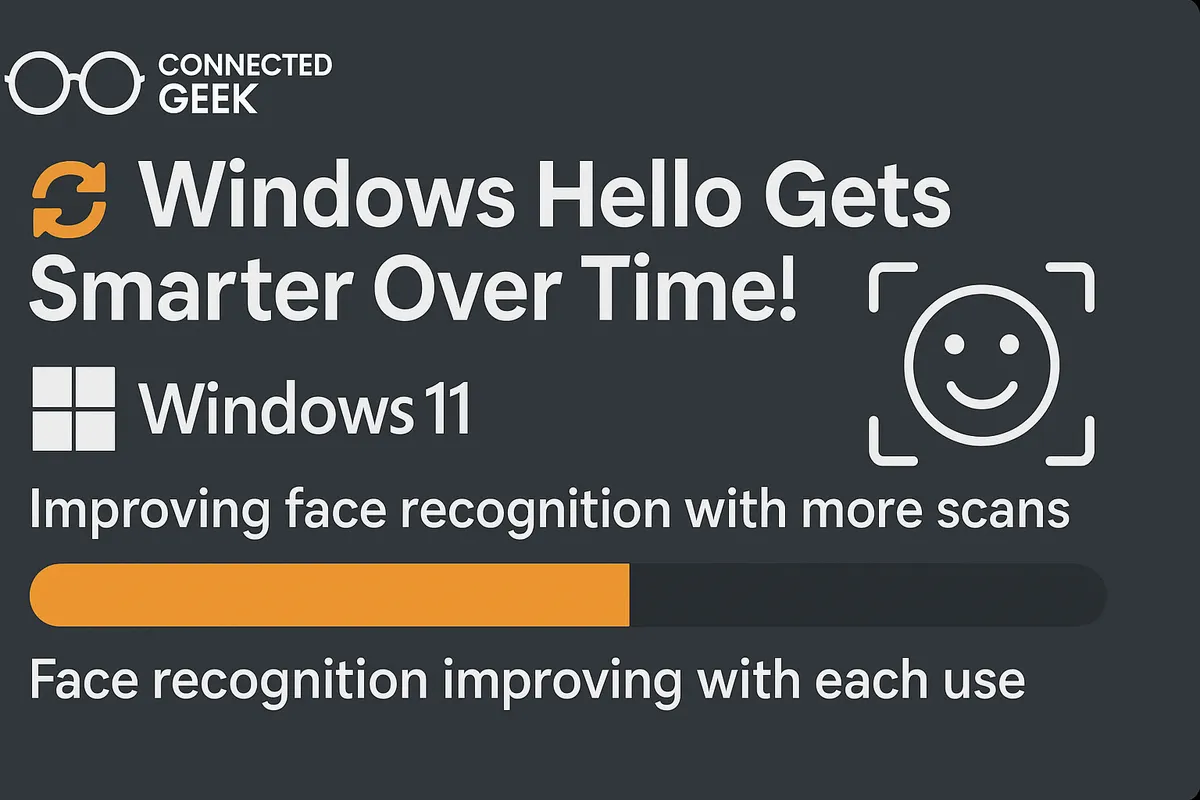
Windows Hello face recognition gets better with use — add a second scan in different lighting via Settings → Accounts → Sign-in options → Improve recognition.
Windows Helloface recognitionsecuritytroubleshootingWindows tipslogin accuracy